Setup help

How to find your Google Place ID

ReviewAI uses the Place ID to connect a location to your Google listing. Google has a free tool that shows it. It takes about a minute.

Overview

What is a Place ID?

A Place ID is a unique code Google gives every place on Google Maps. It is how ReviewAI knows exactly which listing is yours.

What it is used for

  • Loading your existing Google reviews so AI suggestions match your customers’ wording.
  • Following new reviews to show your analytics.
  • Opening the right Google listing if no review page URL is set.

Where you will use it

  • During setup, in step 3 (Location), in the Google Place ID field.
  • It is required for every location.
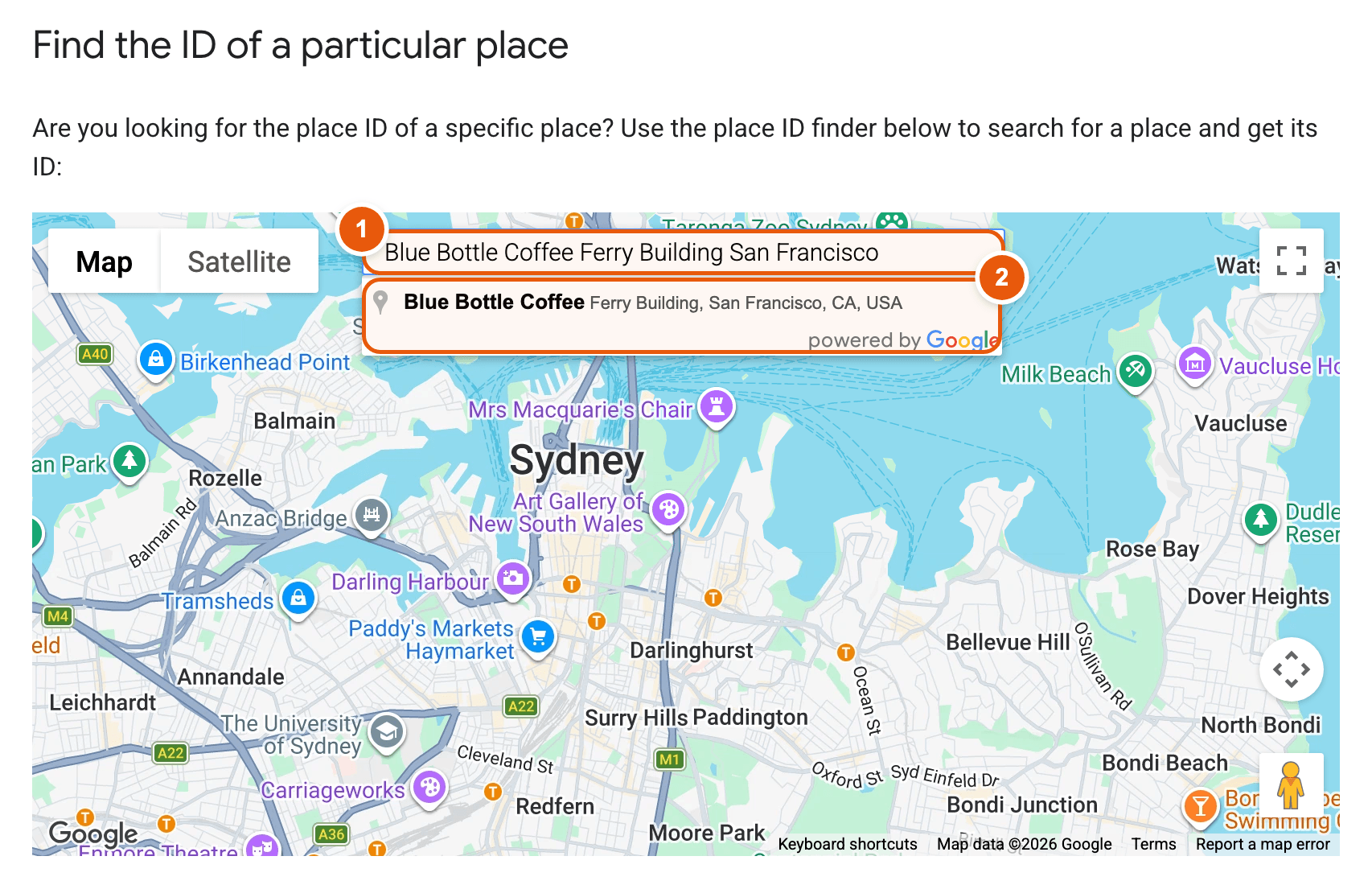
How to read the screenshots: every orange outline carries a number. The same number appears in the list next to the screenshot and explains what that part of the screen does.

Part 1

Copy the Place ID from Google

On Google · Step 2

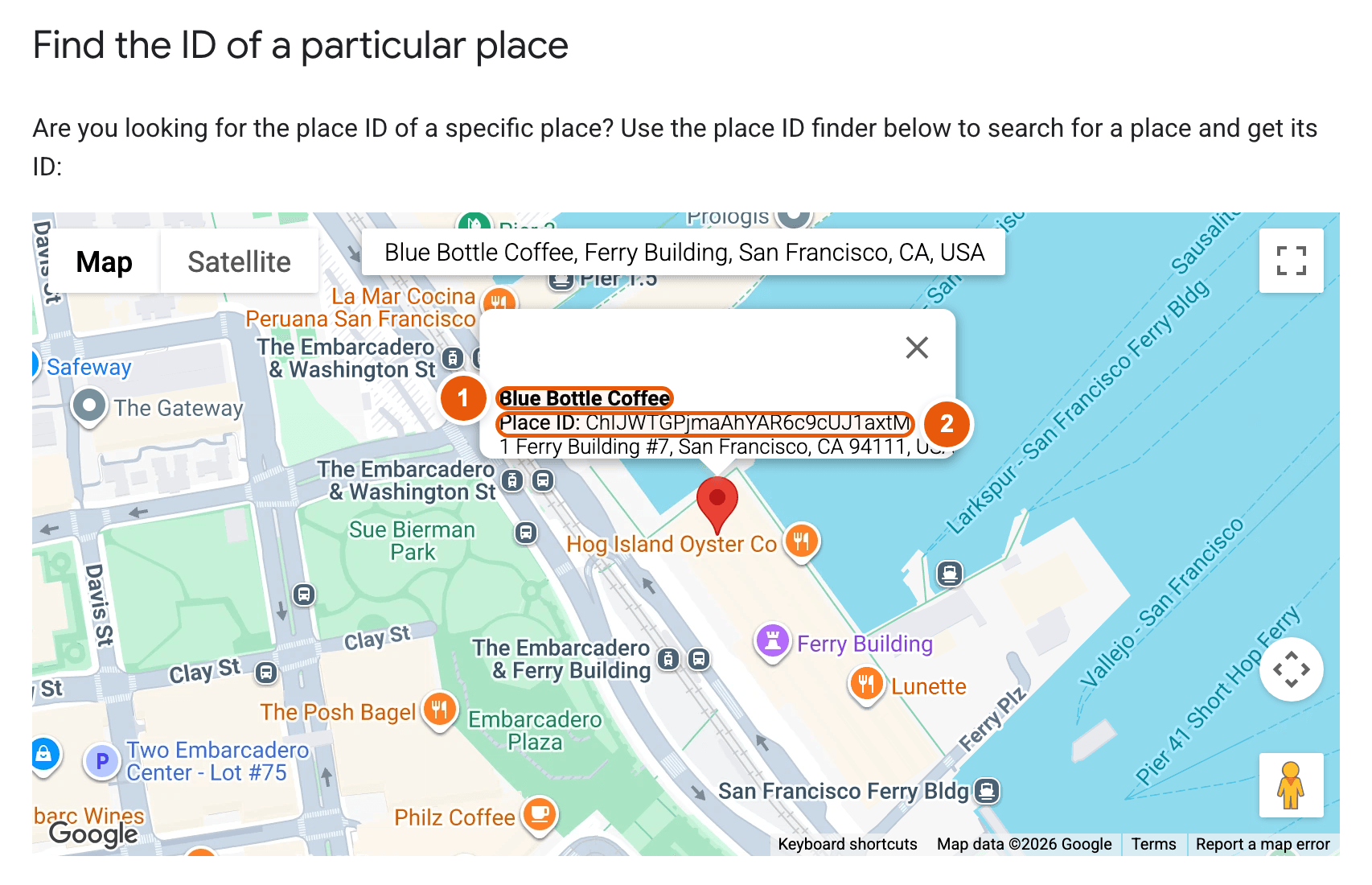
Copy the Place ID from the popup

The map jumps to your business and a small popup opens above the pin. The Place ID is the long code on the second line.
Place ID Finder map with the business popup showing its name and Place ID highlighted
  1. Business name and address. Check that the name and address match your branch before you copy anything.

  2. Place ID. It starts with “ChIJ” and is about 27 characters long. Double-click it, or drag across it, then copy it with Ctrl+C (Cmd+C on Mac).

Tip: Copy only the code, without the words “Place ID:”. Paste it into the Google Place ID field in ReviewAI.

Part 2

Paste it into ReviewAI

  1. In ReviewAI, go to step 3 of 4 (Add your location).
  2. Paste the code into the Google Place ID field.
  3. Add your review page URL in the field below it, then press Next.
Good to know: ReviewAI fetches your existing Google reviews with the Place ID when the location is created. If that fails, check that the Place ID was copied completely. See the setup guide for the whole form.

Help

Common questions

My business does not show up in the suggestions.
  • Add the city or area to the search, for example “Spice Garden Banjara Hills Hyderabad”.
  • Try the name exactly as it appears on Google Maps.
  • Businesses that only serve customers at their location or have no public address may not be listed. Check that your Business Profile is published on Google Maps.
I have several branches. Is the Place ID the same for all of them?

No. Every branch has its own Place ID. Add each branch as its own location in ReviewAI and use that branch’s Place ID, so reviews and the QR code point to the right listing.

What does a Place ID look like?

It is a code made of letters, numbers, dashes and underscores. Most start with ChIJ, for example ChIJN1t_tDeuEmsRUsoyG83frY4. Copy it exactly, with no spaces.

How is the Place ID different from the review page URL?

The Place ID identifies your Google listing. ReviewAI uses it to look up your existing reviews and to follow new ones. The review page URL is the direct link that opens Google’s write-a-review box for customers. You need both, and each is copied from a different Google page.

Can I change the Place ID later?

The Place ID is set when you add the location and cannot be edited afterwards. If you entered the wrong one, add the location again with the right value, or contact support@reviewai.cc for help.

The Place ID Finder looks different from your screenshots.

Google updates its pages from time to time. The steps stay the same: search for your business, select it, and read the Place ID from the popup on the map.