Setup help

How to find your Google review page URL

ReviewAI sends your customers to Google’s own review box for your business. To do that, it needs one link from your Google Business Profile. It takes about two minutes to copy.

Overview

What is the review page URL?

It is the direct link Google gives you for collecting reviews. When a customer opens it, Google shows the “write a review” box for your business. No searching and no scrolling.

What you need

  • A Google Business Profile for your business.
  • Access to the Google account that owns or manages it.
  • A ReviewAI account (free is fine).

Where you will use it

  • During setup, in step 3 (Location), in the Review Page URL field.
  • Any time later in Settings → General for that location.
How to read the screenshots: every orange outline carries a number. The same number appears in the list next to the screenshot and explains what that part of the screen does.

Part 2

Paste it into ReviewAI

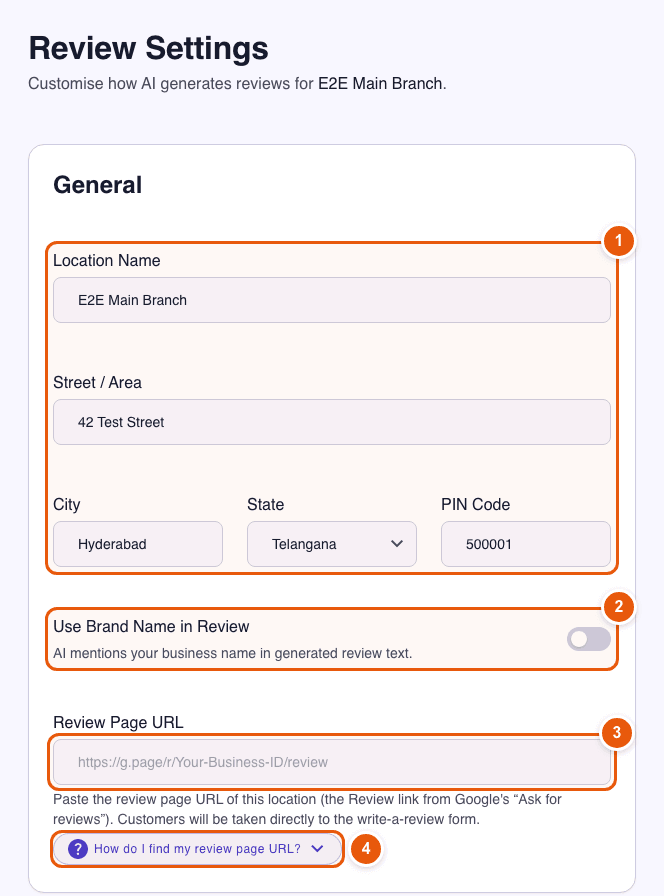
ReviewAI Review Settings with the Review Page URL field highlighted

During setup

In step 3 of 4 (Add your location) paste the link into the Review Page URL field, then press Next.

After setup

  1. Open your dashboard and click Settings on the location card.
  2. In the General section, paste the link into Review Page URL.
  3. Press Save Settings at the bottom of the page.
Good to know: The Google Place ID is a different value. ReviewAI uses it to connect your location to Google. See how to find your Place ID and the setup guide for both fields.

Part 3

Check that it works

  1. Open the copied link in a private window or on your phone. It should open Google’s write-a-review box for your business.
  2. Scan your ReviewAI QR code, pick a star rating and press Copy & Post to Google. Google should open on the same review box.
  3. You do not have to post anything. Go back to ReviewAI and close the page.

Help

Common questions

I do not see “Your business on Google” or “Ask for reviews”.
  • Make sure you are signed in to the Google account that owns or manages the Business Profile (check the profile picture at the top right of Google).
  • Search for your exact business name. The panel appears above the normal results.
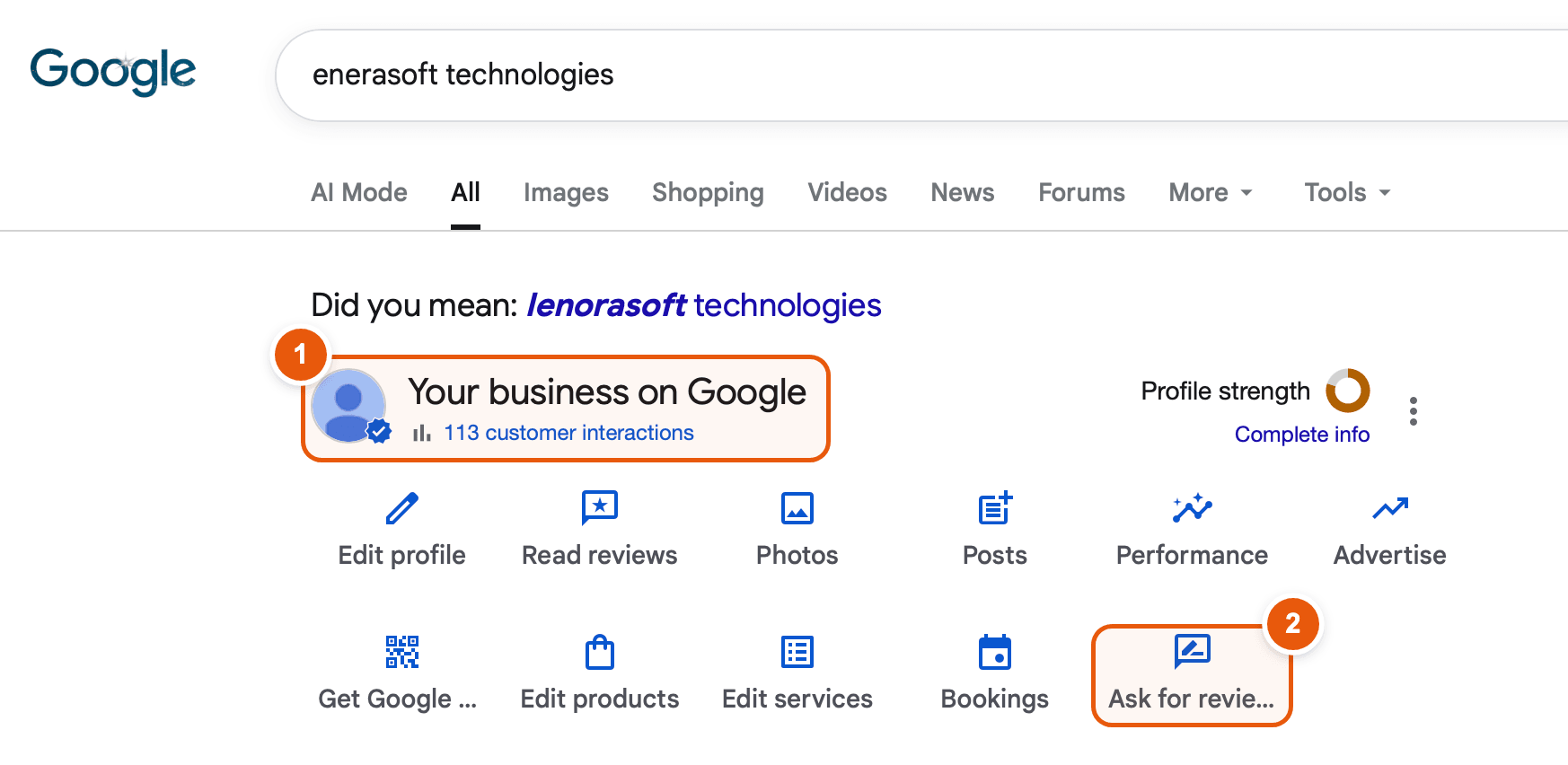
  • Google usually shows these tools only for verified profiles. If it still asks you to verify the profile, finish that first.
  • Google changes its layout from time to time. Look for a button or menu item named Ask for reviews or Get more reviews.
Which link should I copy: the profile link, a Maps link or the Review link?

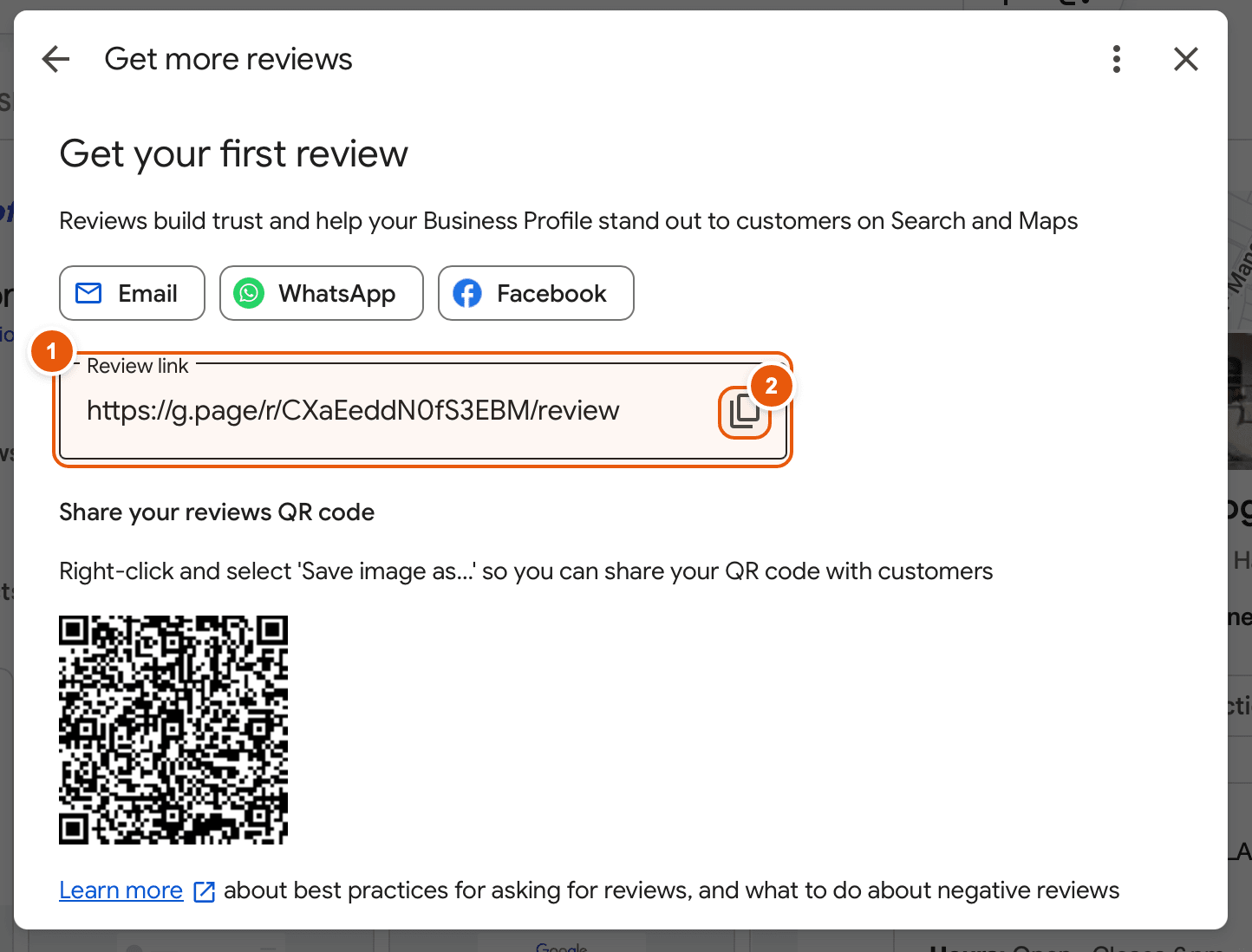
Copy the Review link from the “Get more reviews” window. It usually looks like https://g.page/r/…/review and opens Google’s write-a-review box directly. A link to your profile or to a Maps search page is not the same thing and sends customers to a page where they still have to find the review button.

Does it matter if I already used a Google Maps link before?

Older Google Maps links keep working, but the Review link is the recommended option because it always opens the review box. You can replace the old value any time from Settings → General → Review Page URL.

I have several branches. Do I need a link for each?

Yes. Every location has its own Google Business Profile, so every location in ReviewAI needs its own review page URL. Repeat the steps for each branch and paste each link into that branch’s settings.

Can I use the QR code that Google shows next to the link?

We recommend not to. Google’s QR code opens the review box directly, so customers would not see ReviewAI’s AI-written suggestions. Download the QR code from your ReviewAI location page instead and print that one.

Will it work if I change the link later?

Yes. Paste the new link in Review Settings → General and press Save Settings. It applies to the next customer who scans. Your printed QR code does not change.